How to test a used 2-in-1 or touchscreen laptop (with pictures)
2-in-1 laptops have parts that ordinary laptops do not: a touchscreen, a 360-degree hinge or detachable keyboard, rotation sensors and often a pen. Do the normal checks in our Windows laptop guide first, then test these.
Step 1: Test the whole touchscreen
- Open Paint (or the Whiteboard app).
- Draw slow lines across the whole screen: left to right, top to bottom, and along all four edges.
- Every line should be continuous with no gaps.
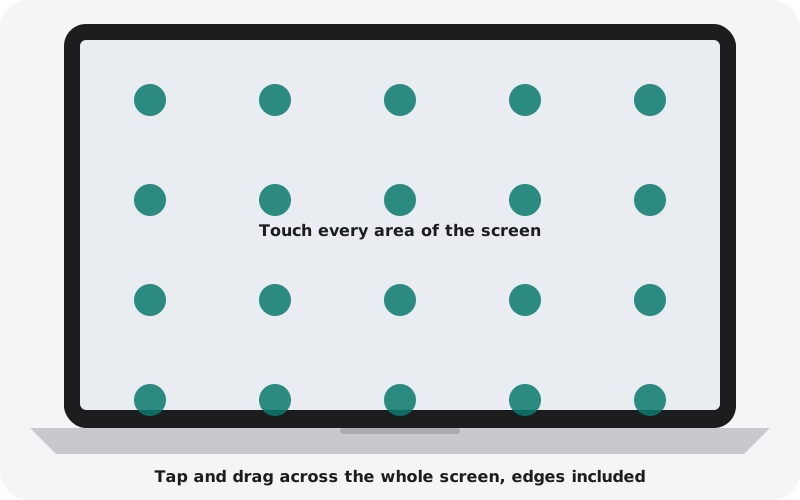
Then use two fingers to pinch-zoom a photo, and scroll a web page with one finger.
Step 2: Fold through every position
Fold the screen slowly from laptop, to tent, to stand, to tablet.
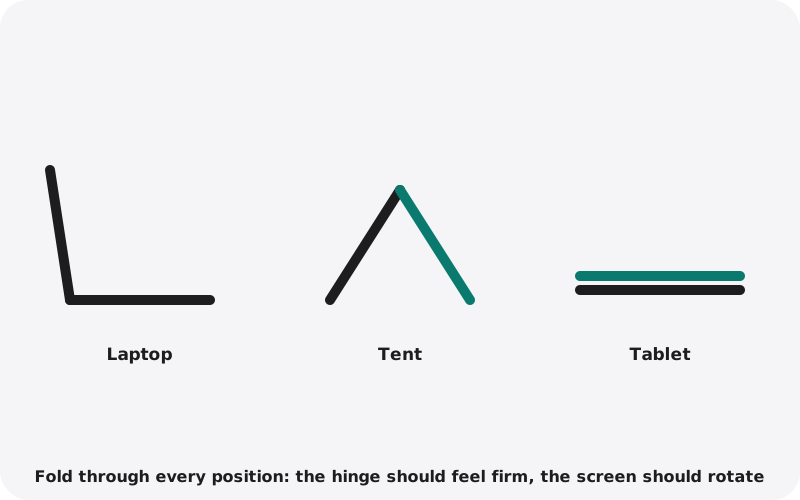
- The hinge should feel firm in every position and not wobble.
- The picture must not flicker while you move it. Flicker usually means a worn screen cable.
- In tablet position, the keyboard and touchpad should stop responding.
Step 3: Check the screen rotates
- Open Settings, System, Display and make sure Rotation lock is off.
- Turn the laptop sideways in tablet position. The picture should rotate within a second or two.
Step 4: Test the pen (if included)
- Open Paint or a notes app and draw with light and heavy pressure. Lines should get thinner and thicker.
- Press the pen buttons and try the eraser end if it has one.
- Some pens need charging or a battery: ask the seller whether it is included.
Step 5: For Microsoft Surface
- The kickstand should hold its angle firmly.
- Attach the keyboard cover: it should work immediately when connected.
- To open the firmware settings, hold the volume-up button and press power. If it asks for a password, it is locked.
Quick checklist
- Touch works across the whole screen, with no ghost touches
- Hinge is firm, picture does not flicker when moving
- Keyboard switches off in tablet position
- Screen rotates
- Pen draws with pressure (if included)
Buying from nexlap
Browse 2-in-1 and touchscreen laptops with touch, hinge and pen already tested.